In Part 1 we took a Super Metric formula apart: resource entries, this, metric keys and depth. Every example worked on a single object. That is useful for unit conversions, but the real value of Super Metrics starts when one object asks many objects a question.
VCF Operations already answers many cluster questions out of the box, at least in a basic form: configured vCPUs, Worst VM CPU contention, overcommitment. The power of Super Metrics is that we can go further and ask questions no out-of-the-box metric answers, for example: “What is the worst CPU contention of all VMs with more than 4 vCPUs in this cluster?”
Note the wording. A Super Metric returns a value, not an object: it tells you how bad the worst VM is, not which VM it is. To answer a question like this, the cluster must look at all its VMs, and that is what looping functions do. The “more than 4 vCPUs” part needs a filter, we get there in Part 3.
Looping functions vs. single functions
Super Metric functions come in two families.
Looping functions iterate over every object a resource entry returns and collapse the values into one number per collection cycle (few examples):
sumandavg– the total or the meanminandmax– the best or the worst valuecount– how many values there are (very powerful with filters, see Part 3)
Single functions take one value and return one value, for example abs, ceil, floor, pow, sqrt or log, plus the usual operators + – * / % and parentheses.
One rule follows from this: a looping function only makes sense around a resource entry that returns many objects, so one with objecttype and depth. Wrapping max() around ${this, …} gives you the same single value back.
The complete list is in the documentation. You don’t need to memorize it, the editor offers the functions in its dropdown.
Metric or attribute, and “Cannot convert aggregated result to number”
If you have built a few super metrics, you have probably met this error. To understand it, it helps to know the two ways a resource entry can name what it reads. The documentation defines them like this:
- An attribute is “metadata that describes the metric for the adapter to collect from the object”. Think of it as the metric type, for example CPU usage.
- A metric is “an instance of an attribute”. The docs’ example: if a VM has several CPUs, the CPU usage of each CPU is a metric instance.
A resource entry can use either metric= or attribute=, both for a single object (this) and for objects found by objecttype and depth. The documentation’s own looping example uses attribute=:
avg(${adaptertype=VMWARE, objecttype=VirtualMachine, attribute=cpu|usage_average, depth=1})The error itself comes from what a resource entry returns. A resource entry that reads one metric of one object, such as ${this, metric=cpu|usage_average}, is a number. You can add it, divide it and compare it. A resource entry that can return values from many objects or instances, either because it uses objecttype and depth or because it reads an attribute with several instances, returns a set of values. A set is not a number, so it has to go through a looping function first:
# Fails: one value per host, but no function to collapse them
${adaptertype=VMWARE, objecttype=HostSystem, metric=cpu|usage_average, depth=1}

# Works: max() turns the set into one number
max(${adaptertype=VMWARE, objecttype=HostSystem, metric=cpu|usage_average, depth=1})
The same applies when you put a multi-value resource entry straight into arithmetic, for example subtracting one host metric from another without sum() or avg() around each. So when you see “Cannot convert aggregated result to number”, check two things:
- Is every resource entry with objecttype and depth wrapped in a looping function?
- If you meant a single value of a single object, did you pick the metric of that object (
metric=) rather than the metric type across objects or instances (attribute=)?
Three warm-up examples you can verify
All three examples below are assigned to Cluster Compute Resource. Remember from Part 1: from a cluster, hosts are at depth 1 and VMs at depth 2.
They are deliberately simple, and VCF Operations shows similar values on the cluster out of the box. That is the point: compare your result with the out-of-the-box value to prove the mechanics work, before you build formulas that nothing else can check.
How bad is the worst VM?
max(${adaptertype=VMWARE, objecttype=VirtualMachine, metric=cpu|readyPct, depth=2})Averages hide pain. A cluster where 99 VMs are fine and one VM has 15% CPU ready looks perfectly healthy on average. max tells you how bad the worst VM is. It does not tell you which VM that is: a Super Metric returns a value, not an object. To find the VM, sort a VM list or view by CPU ready.
How much did we hand out?
sum(${adaptertype=VMWARE, objecttype=VirtualMachine, metric=config|hardware|num_Cpu, depth=2})The sum of configured vCPUs across all VMs in the cluster.
What do we physically own?
sum(${adaptertype=VMWARE, objecttype=HostSystem, metric=hardware|cpuinfo|num_CpuCores, depth=1})The sum of physical cores across all hosts. Note the different depth: hosts are one hop away, VMs two.
Putting it together: the vCPU to pCore ratio
Divide the last two and you have the KPI that almost every capacity conversation I have with customers starts with:
sum(${adaptertype=VMWARE, objecttype=VirtualMachine, metric=config|hardware|num_Cpu, depth=2})
/ sum(${adaptertype=VMWARE, objecttype=HostSystem, metric=hardware|cpuinfo|num_CpuCores, depth=1})
Name it YourPrefix - vCPU to pCore Ratio and assign it to Cluster Compute Resource. Two habits I recommend when building formulas like this:
- Build the numerator first and Preview it on its own. Then add the denominator. If the final result looks wrong, you know which half to look at.
- Sanity-check it once by hand: count the vCPUs and cores in the UI and do the division in your head.
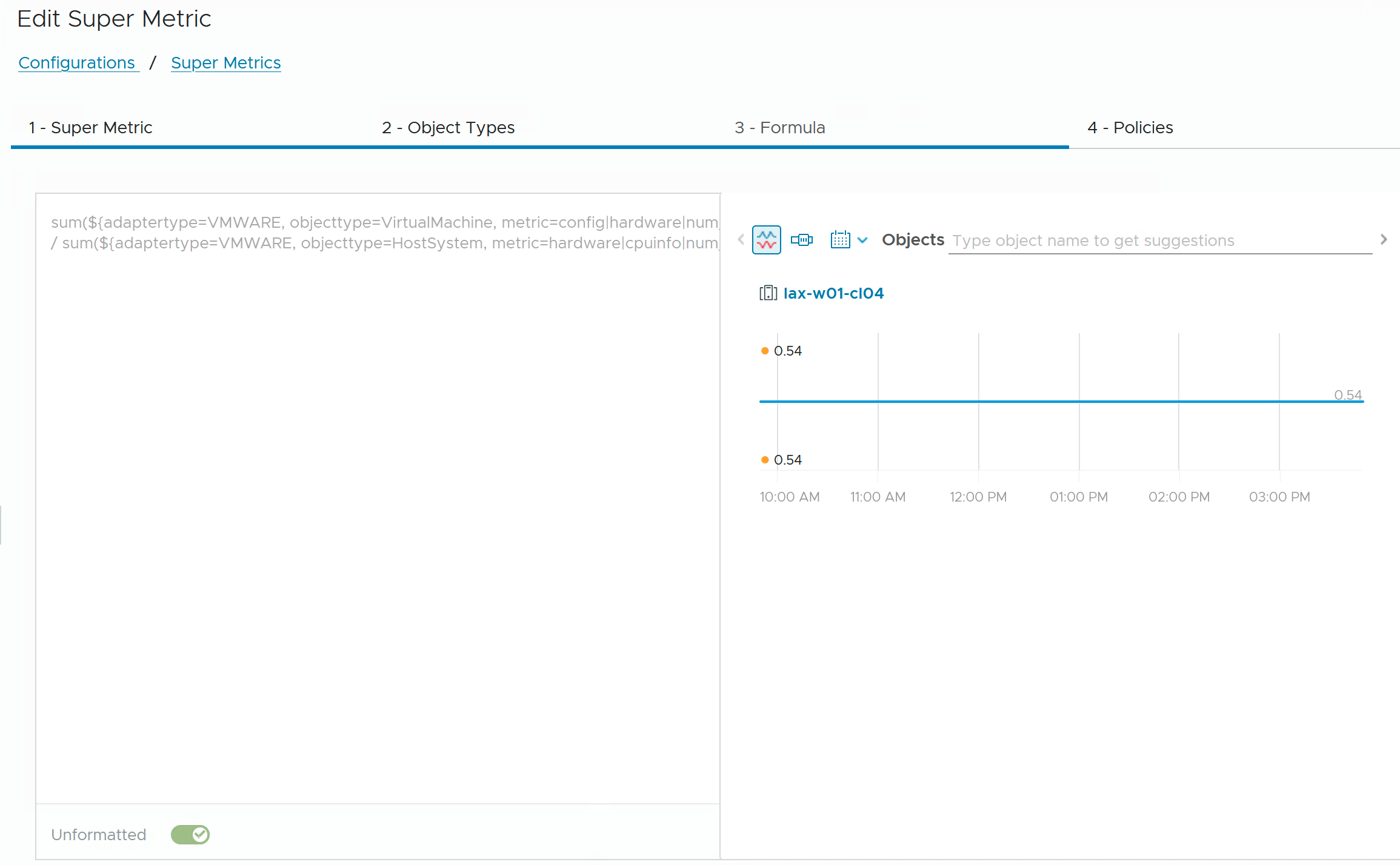
There is one flaw in this formula. Can you spot it? I’ll fix it in Part 3.
Aggregate first, convert last
When you combine aggregation with unit conversion, do the conversion once, at the end:
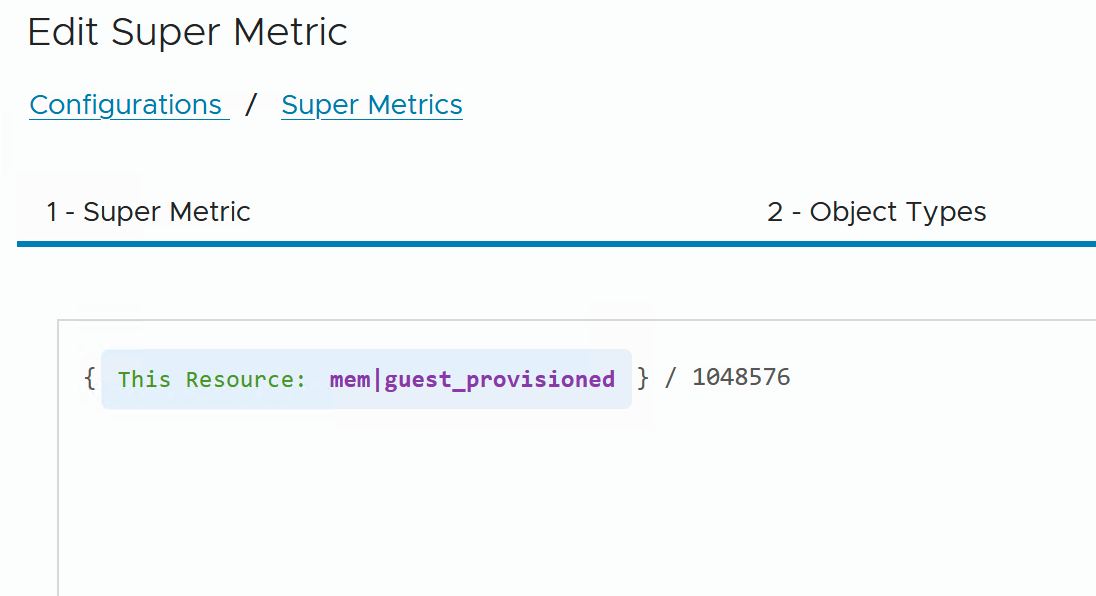
sum(${adaptertype=VMWARE, objecttype=VirtualMachine, metric=mem|guest_provisioned, depth=2}) / 1048576This gives the total configured VM memory of the cluster in GB (the metric is reported in KB; 1,048,576 KB = 1 GB). The conversion runs once, on the aggregated value, which keeps the formula short and easy to read.
One formula, many levels
Now let’s reuse the ratio on a datacenter. Assign the same Super Metric to Datacenter and Preview it. It doesn’t work: from a datacenter, VMs are three hops away and hosts two. The formula is looking at the wrong level.
The fix is the trick from Part 1. Raise both depths to a generous value:
sum(${adaptertype=VMWARE, objecttype=VirtualMachine, metric=config|hardware|num_Cpu, depth=5})
/ sum(${adaptertype=VMWARE, objecttype=HostSystem, metric=hardware|cpuinfo|num_CpuCores, depth=5})
Because objecttype still filters, the formula only picks VMs and hosts, whatever the level. Assign it to Cluster, Datacenter and vCenter, and you get the ratio on all three from one definition. This is also what the official best-practice guidance recommends: use a larger depth so the Super Metric can expand to higher levels.
Try it
On Cluster Compute Resource, build:
- YourPrefix – Max VM CPU Ready (%) with max and depth 2.
- YourPrefix – Total VM Memory Configured (GB) with sum and the conversion at the end.
- YourPrefix – vCPU to pCore Ratio, then make it reusable on Datacenter by raising the depth.
What’s next
Our ratio counts every VM in the cluster, including the powered-off ones. That is the flaw, and it is a good reason to learn filtering. In Part 3 we look at the where clause, freshness checks, string operators and conditional expressions that turn numbers into decisions.
Stay safe.
Thomas – https://twitter.com/ThomasKopton
2 Comments