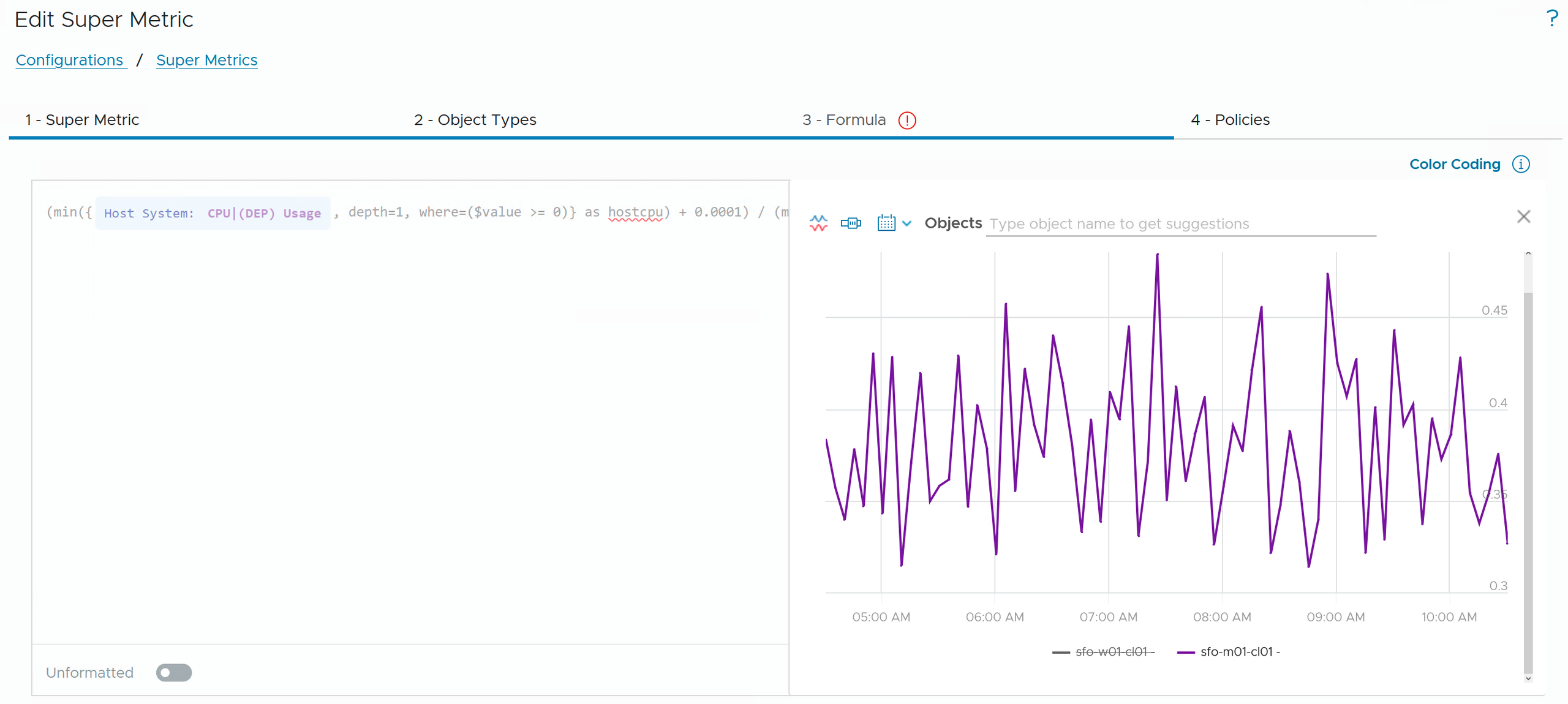
At the end of Part 2 I left you with a flawed formula. Our vCPU to pCore ratio summed the vCPUs of every VM in the cluster, including the ones that have been powered off for months. A customer looking at that number would see an overcommitment that doesn’t exist.
So far, a resource entry has used every object it found. In this part we get picky: only powered-on VMs, only fresh data, only VMs above a threshold. And we turn numbers into states that alerts and dashboards can act on.
The WHERE clause
The where clause sits inside the resource entry and is evaluated per object, before aggregation. An object that doesn’t pass is simply ignored.
The simplest form filters on the value itself. $value is the metric the resource entry reads:
count(${adaptertype=VMWARE, objecttype=VirtualMachine, metric=cpu|usage_average, depth=2, where=($value > 80)})Assigned to a cluster, this counts the VMs running above 80% CPU. Combined with count, the where clause becomes one of the most useful tools we have.
Filtering on a different metric
Often, the condition is about a different metric of the same object. For that, you put a resource entry inside the where clause, with only a metric and no adaptertype or objecttype:
where=(${metric=sys|poweredOn} == 1)
This reads sys|poweredOn of the very VM being evaluated. And that fixes the ratio from Part 2:
sum(${adaptertype=VMWARE, objecttype=VirtualMachine, metric=config|hardware|num_Cpu, depth=2, where=(${metric=sys|poweredOn} == 1)}) / sum(${adaptertype=VMWARE, objecttype=HostSystem, metric=hardware|cpuinfo|num_CpuCores, depth=1})Put both versions side by side on the same cluster. The difference is the vCPU allocated to powered-off VMs, which is a good conversation starter on its own.
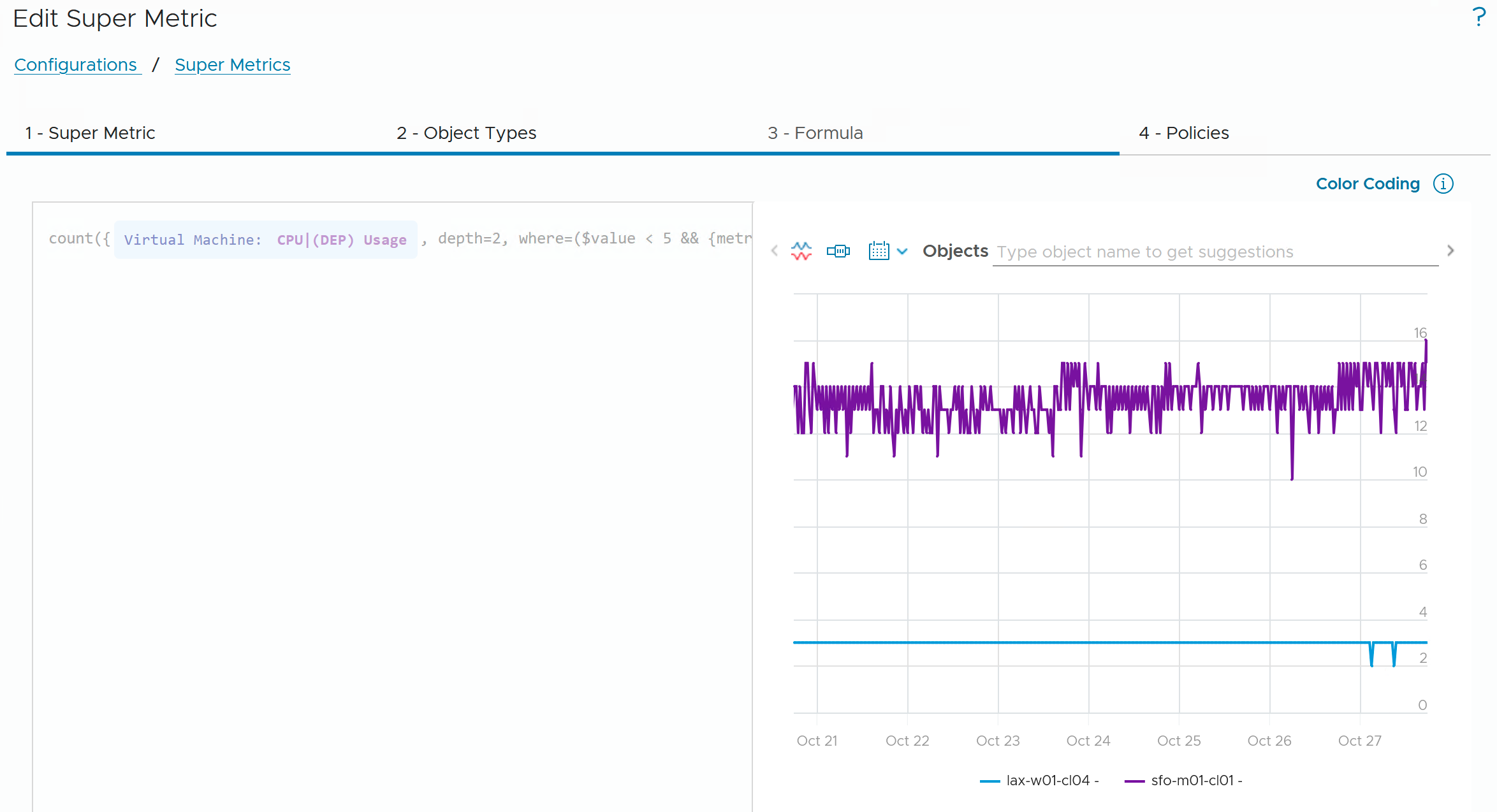
Conditions can be combined with && (and), || (or) and ! (not), and compared with ==, !=, <, <=, > and >=. Here is a rightsizing view in a single number, the idle VMs that are actually running:
count(${adaptertype=VMWARE, objecttype=VirtualMachine, metric=cpu|usage_average, depth=2, where=($value < 5 && ${metric=sys|poweredOn} == 1)})Without the second condition, every powered-off VM would count as idle, too.
Don’t trust stale data: isFresh()
Here is a subtle one. When a host or VM stops reporting, its last value doesn’t disappear. Without precautions, that frozen number keeps flowing into your average or sum.
The isFresh() function protects against that. It returns true when the last data point of a metric is newer than the metric’s expected publishing interval:
avg(${adaptertype=VMWARE, objecttype=HostSystem, metric=cpu|usage_average, depth=1, where=($value.isFresh())})It combines with other conditions like any other expression:
where=($value < 5 && $value.isFresh() && ${metric=sys|poweredOn} == 1)
I add isFresh() to most aggregating KPIs that feed alerts or dashboards. A KPI that silently reports yesterday’s value is worse than one that reports nothing.
Matching on text
The where clause also understands string operators for string metrics and properties: equals, contains, startsWith, endsWith and their negations. For example, counting Linux VMs in a cluster:
count(${adaptertype=VMWARE, objecttype=VirtualMachine, metric=sys|poweredOn, depth=2, where="summary|guest|fullName contains Linux"})Property keys can differ between versions, so pick the guest OS key with autocomplete and confirm the result with Preview. A word of advice: if your filter describes a business scope (all SAP VMs, all VMs of tenant X), a custom group is usually the cleaner solution. More on that in Part 4.
For another real-world filtering example, see my earlier post Exclude “Aggregate” Instanced Metric using vRealize Operations Super Metric.
Turning numbers into decisions: conditional expressions
The ternary operator is an if-else in one line: condition ? value_if_true : value_if_false. Ternaries can contain any expression, including other ternaries. That makes them perfect for status codes:
Name: YourPrefix - Cluster Host CPU Status – Assigned to: Cluster Compute Resource, Unit: none
max(${adaptertype=VMWARE, objecttype=HostSystem, metric=cpu|usage_average, depth=1}) > 80 ? 2 : (max(${adaptertype=VMWARE, objecttype=HostSystem, metric=cpu|usage_average, depth=1}) > 60 ? 1 : 0)The status follows the busiest host in the cluster. Read it as: if any host is above 80% CPU usage, return 2 (critical); otherwise, if any host is above 60%, return 1 (warning); otherwise return 0 (healthy). The formula reads the host metric through a looping function, because cpu|usage_average is a metric of the hosts, not of the cluster object. The resource entry appears twice here, in Part 4 we’ll see how an alias avoids that.
Why convert a perfectly good percentage into 0, 1 and 2? Because:
- A heatmap with three discrete values is readable at a glance across hundreds of objects.
- One symptom, “greater than or equal to 2”, is all you need to alert on it.
- The thresholds live in one place: change the super metric, and every dashboard and alert follows.
One caveat: a status code throws information away. Keep the raw KPI next to it.
Try it
On Cluster Compute Resource, build:
YourPrefix - Count Idle VMs: below 5% CPU and powered on.YourPrefix - vCPU to pCore Ratio (Powered On): the fixed ratio, compared with the Part 2 version.YourPrefix- Cluster CPU Status: the 0/1/2 status code. Adjust the thresholds so you see more than one state in your lab.- Bonus: add
isFresh()to the idle VM count.
What’s next
You can now pick exactly the objects you want and turn values into states. In Part 4 we look at the patterns that turn a working formula into a production KPI: aliasing, safe division, custom groups and keeping thousands of super metric computations cheap.
Stay safe.
Thomas – https://twitter.com/ThomasKopton
1 Comment