After Part 3 you can build almost any formula: single-object math, aggregation across the hierarchy, filters and status codes. But there is a difference between a formula that works in Preview and a KPI you can run in production for years, across thousands of objects, and hand over to a colleague.
This part is about that difference: three patterns and a handful of habits I apply to every Super Metric that leaves my lab.
Pattern 1: Resource entry aliasing
Complex formulas often use the same resource entry more than once. Instead of repeating it, you can give it a name with as and reuse that name:
max(${adaptertype=VMWARE, objecttype=HostSystem, metric=cpu|usage_average, depth=1} as hostcpu)The alias is defined where the resource entry is first used, here inside max(). Don’t try to define it on a line of its own: a resource entry with objecttype and depth returns one value per host, and on its own VCF Operations rejects it with “Cannot convert aggregated result to number”. Part 2 explains why.
From then on, hostcpu stands for the whole entry. Alias names are case-insensitive. The formula gets shorter, easier to read and easier to change: there is only one place to fix a metric key.
Pattern 2: Safe division
Every ratio has a denominator, and every denominator can be zero. An idle cluster, a host in maintenance mode, a new group without members. A division by zero gives you gaps or errors exactly when someone looks at the dashboard.
The standard trick is to add a tiny constant to both sides:
(a + 0.0001) / (b + 0.0001)The result is practically unchanged for real values and well defined when both are zero.
Both together: the cluster balance index
Here is a KPI that uses both patterns. It is adapted from an example in the product documentation, which uses a host CPU demand metric, I use CPU usage here.
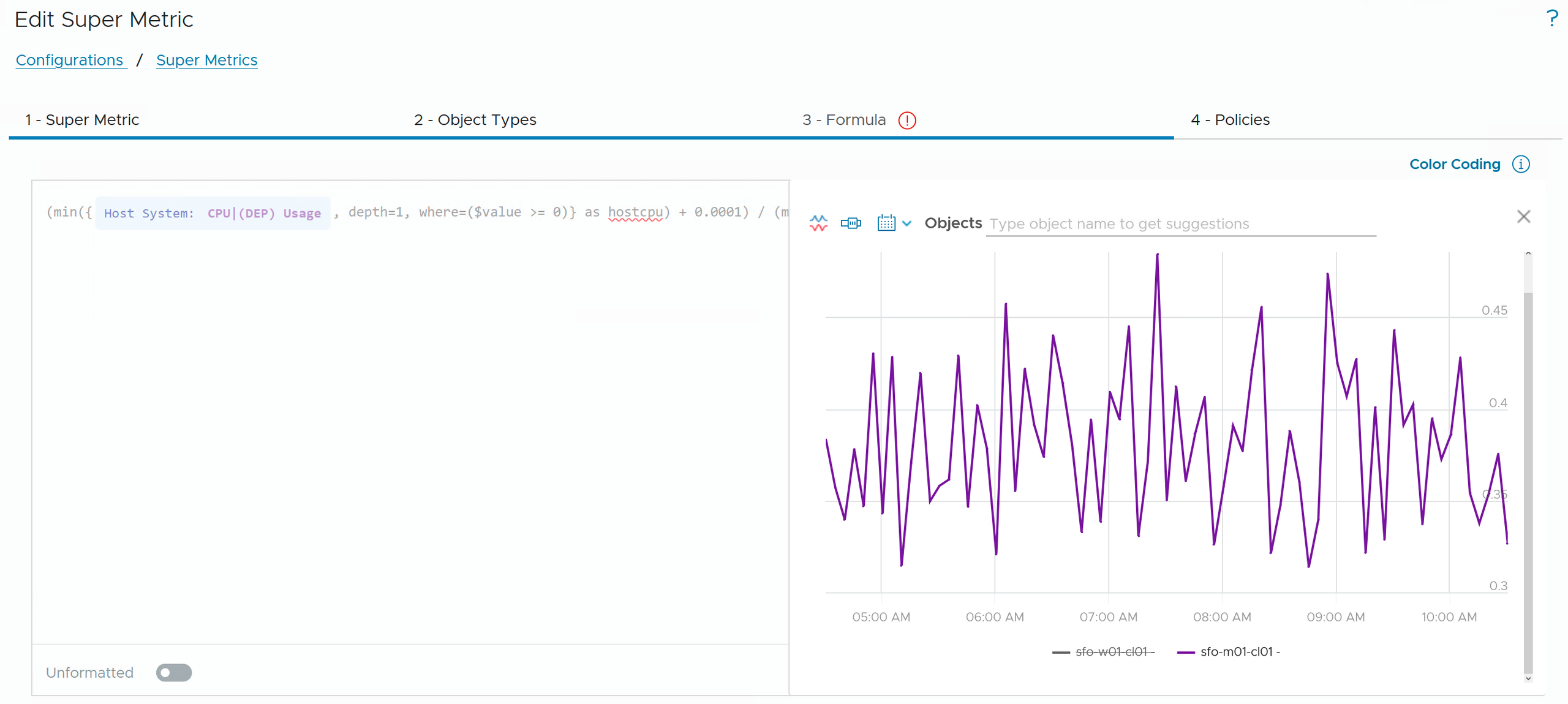
(min(${adaptertype=VMWARE, objecttype=HostSystem, metric=cpu|usage_average, depth=1, where=($value >= 0)} as hostcpu) + 0.0001) / (max(hostcpu) + 0.0001)Assigned to Cluster Compute Resource, it divides the least busy host by the busiest one:
- 1 means all hosts carry the same load.
- Values drifting towards 0 mean one host runs much hotter than the others, a good reason to check the DRS configuration.
The resource entry is defined once inside min, named hostcpu, and reused inside max. The where clause drops invalid negative values, and the 0.0001 keeps an idle cluster from breaking the KPI.
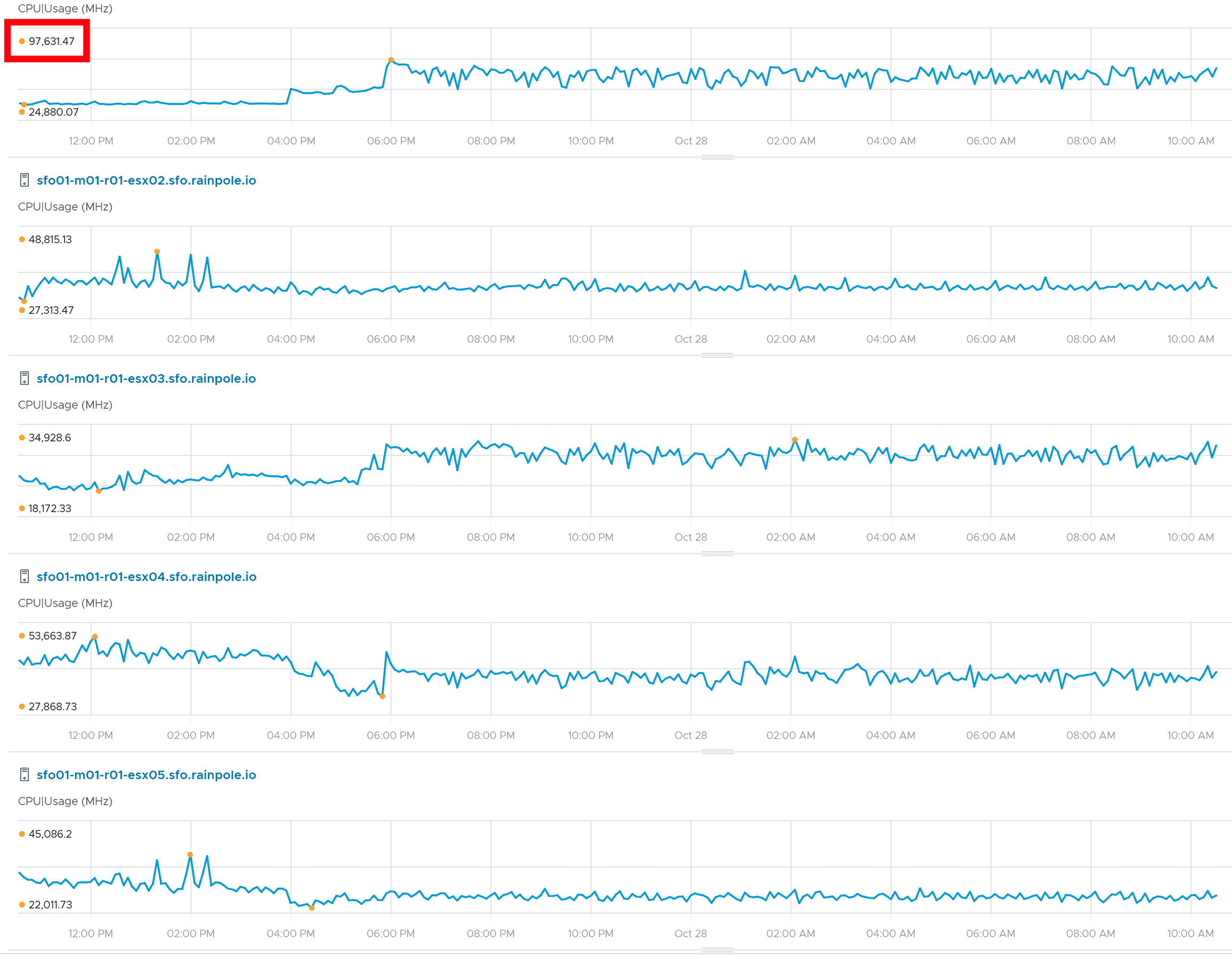
And here is the cross-check using the metric charts, where we can see one ESX host is significantly more utilized than its peers in the cluster.
Pattern 3: Let a custom group define the scope
In Part 3 I promised a cleaner alternative to long where clauses. When the scope you care about is a business concept, such as an application, a tenant or a service tier, build a Custom Group for it and assign the Super Metric to the group type.
Group members sit at depth=1 from the group. So the total configured memory of an application becomes:
sum(${adaptertype=VMWARE, objecttype=VirtualMachine, metric=mem|guest_provisioned, depth=1}) / 1048576The membership rules (tags, names, properties) do the filtering. This has three advantages:
- The formula stays short and easy to review.
- The scope is visible and maintained in one place, the group definition.
- Assigned to the group type, every new group of that type gets the KPI automatically.
The official best-practice guidance says the same: use a group instead of a where clause where possible, because it is easier to understand. I used VM groups for a different purpose in Reducing Alert Noise for VM Groups in VCF Operations.
Habits for Super Metrics at scale
VCF Operations computes Super Metrics every collection cycle. The cost grows with the number of objects a Super Metric is assigned to, times the number of objects each formula touches. A single formula over thousands of VMs is usually no problem, hundreds of careless ones assigned to everything are.
These are the habits I follow, most of them straight from the product’s best-practice guidance:
- Assign narrowly. Only to the object types that need the value. No world-level formulas over every VM unless you really need them.
- Activate in the right policy, not in the base policy for everything.
- Preview first. Test on a real object before the Super Metric goes live.
- Prefer groups over where when the scope is a business concept.
- Retire cleanly. Deactivate the Super Metric in the policy and remove the object type assignment before you delete it.
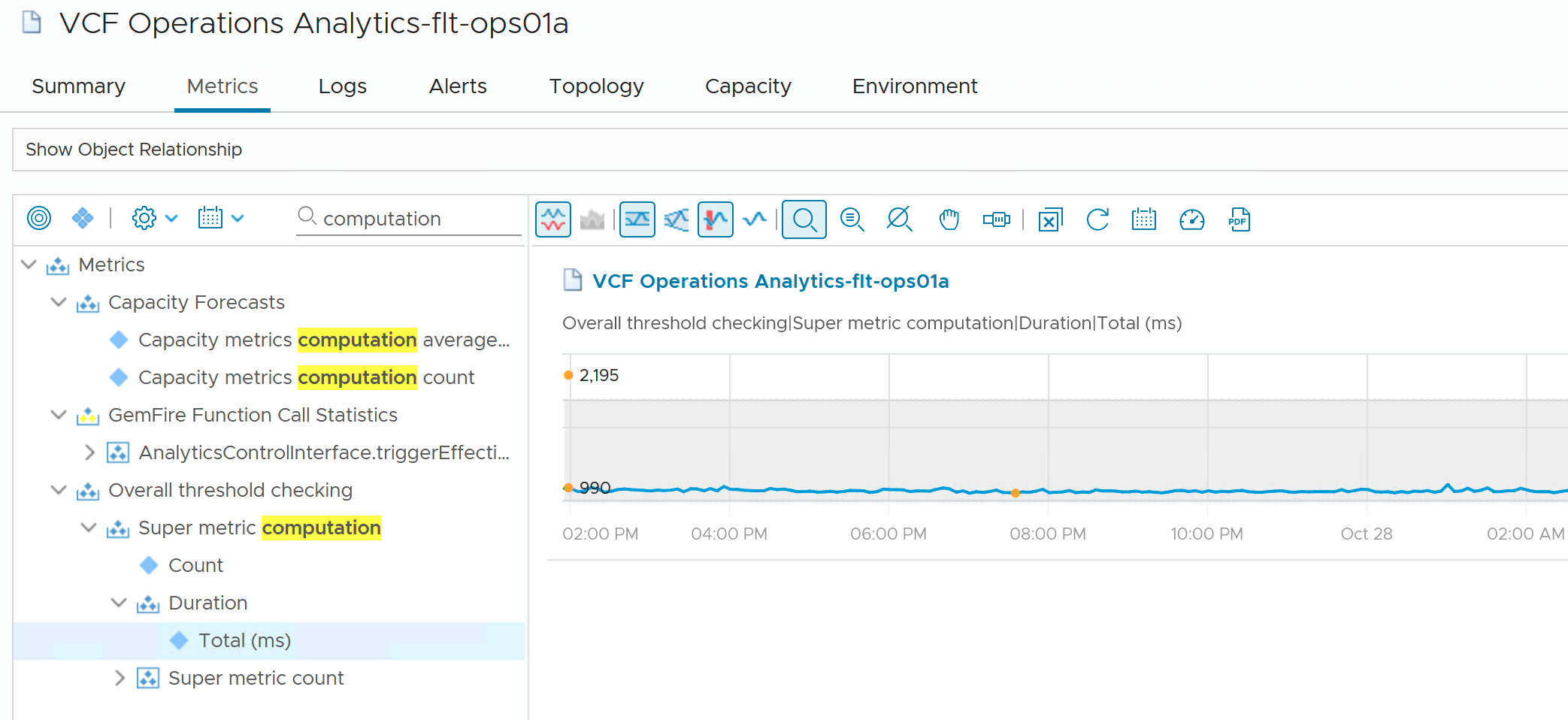
- Watch the cost. VCF Operations self-monitoring tracks how long Super Metric computation takes. Check it before and after a larger rollout.
- Name and describe. YourPrefix – <Function> <Object> <Metric> (<Unit>) and one sentence on what it answers.
How to check the Super Metric computation metrics:
- Using the search bar find your “VCF Operations Analytics” instance(s).
- Look at the metric
Overall Threshold Checking | Super Metric Computation | Duration | Total (ms).
Try it
- Build SM – Cluster Host CPU Balance Index on Cluster Compute Resource and compare it with host CPU usage over the last days.
- Create a custom group type for applications, add one group with a dynamic membership rule, and assign a memory sum Super Metric with depth=1 to the group type.
What’s next
We have a set of production-ready KPIs. In the final part, Part 5, we put them to work: symptoms and alerts, a KPI dashboard, version control with Git, and the six things to check when a Super Metric looks wrong.
Stay safe.
Thomas – https://twitter.com/ThomasKopton