VMware VCF Operations collects thousands of metrics out of the box, and for most day-to-day questions they are all you need. Sooner or later, though, every environment has questions the built-in metrics weren’t designed to answer. A KPI that combines metrics from different objects or even different adapters. A value calculated for a scope that only exists in your organization, like an application, a tenant or a service tier. A company-specific threshold or score that turns raw numbers into “good”, “watch” and “act”. Or simply a metric at a level of the hierarchy where none is collected. That is where VCF Operations Super Metrics come in.
Super Metrics are one of the most powerful features in VCF Operations, and at the same time probably one of the most underused. The syntax looks scary at first, and many people stop at copying a formula from a forum post without really knowing why it works. This series fixes that. In five parts we go from your very first formula to KPIs that drive alerts and dashboards:
- Part 1 – Anatomy of a Formula (this post): what a super metric is, the four steps from formula to data, resource entries, this, metric keys, depth and the editor. We build our first super metric on a VM.
- Part 2 – Looping Functions and Depth: how one object aggregates many with
sum,avg,min,maxandcount, and howdepthmakes one formula work on cluster, datacenter and vCenter. We build the “worst VM CPU ready” and the “vCPU to pCore” ratio. - Part 3 – Filtering and Logic: the
WHEREclause, filtering on metrics, string operators and conditional expressions. We fix the ratio to count only powered-on VMs and build a 0/1/2 status code. - Part 4 – Hero Patterns: aliasing, safe division and custom groups, plus the habits that keep super metrics fast and maintainable at scale. We build a cluster host CPU balance index.
- Part 5 – Putting Super Metrics to Work: symptoms and alerts, a KPI dashboard, version control with Git, and the six things to check when a value looks wrong.
The series is based on a hands-on workshop, so every part comes with examples you can build in your own environment.
What is a Super Metric?
A super metric is a formula that combines one or more metrics from one or more objects using math, aggregation and logic. VCF Operations computes it every collection cycle and stores the result like any other metric.
That last part is the important one. Once it is computed, a super metric is just a metric. You can chart it, put it in a view or a report, show it on a dashboard and alert on it.
The lifecycle: four steps before you see data
The most common question I get about super metrics is “Why does mine show no data?” In nine out of ten cases, one of these four steps is missing:
- Validate the formula.
- Preview it against a real object to check the result.
- Assign it to the object type(s) it should be computed on.
- Activate it in the policy that applies to those objects.
Two things to keep in mind. First, activate the super metric in the policy that covers the relevant objects, not the base policy for everything. Second, there is no backfill: values are collected from the moment of activation. If you need a KPI for next quarter’s review, create it today.
Anatomy of a formula
Every value in a super metric comes from a resource entry, the part in ${…}. Here are the two forms you will use all the time:
avg(${adaptertype=VMWARE, objecttype=VirtualMachine, metric=cpu|usage_average, depth=2})${this, metric=mem|guest_provisioned} / 1048576
Let’s take them apart.
- adaptertype and objecttype tell VCF Operations which kind of object to read: VMWARE with VirtualMachine, HostSystem or ClusterComputeResource, for example.
- metric is the metric
keyin the formgroup|name. It is not the label you see in the UI. The UI shows “CPU | Usage (%)”, the formula needscpu|usage_average. - this means “the object this super metric is being computed on”. With this, you don’t need
adaptertypeorobjecttype. - depth says how many relationship hops away to look. More on that in a moment.
The first line is an average across many VMs. The second line is simple math on a single object: memory metrics are in KB, and dividing by 1048576 (1024 × 1024) gives GB.
Depth, explained once and for all
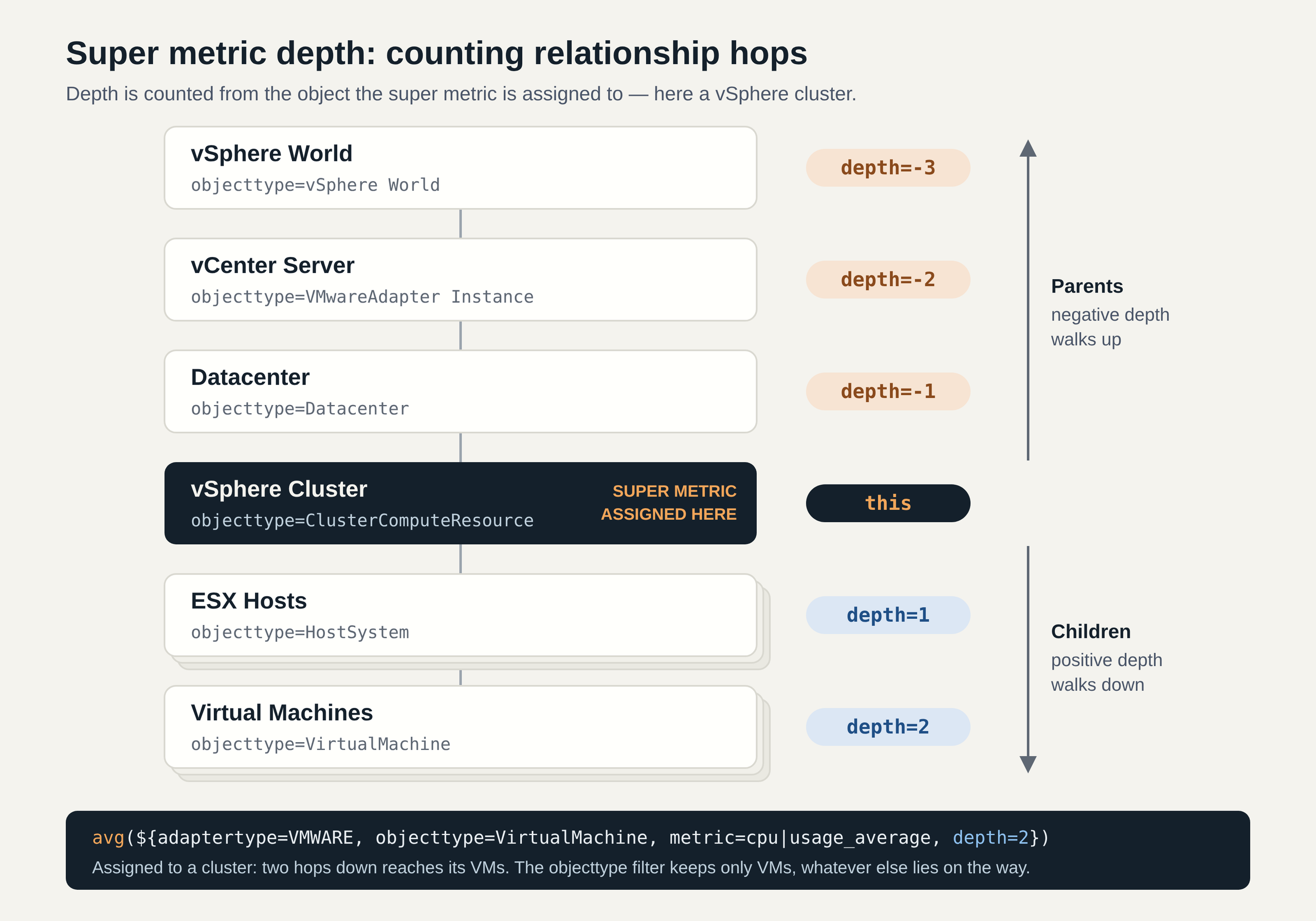
Depth is the concept people get wrong most often, so let’s be precise. Depth counts hops from the object the super metric is assigned to, not from the top of the hierarchy.
Assign a super metric to a cluster, and:
depth=1reaches the hosts (children)depth=2reaches the VMs (grandchildren)depth=-1reaches the datacenter (parent)
Positive values walk down, negative values walk up. The objecttype filter decides which objects along the way are actually used.
This leads to a useful trick: a generous depth is safe as long as objecttype is set. If you write depth=5, the formula still only picks VMs, but now it works whether you assign it to a cluster, a datacenter or a vCenter. One formula, many levels. We will use that in Part 2.
Let the editor do the typing
The super metric editor does a lot of the work for you, and I strongly recommend letting it:
- Autocomplete – start typing an object type or a metric name and pick the suggestion. The editor builds the resource entry with the exact keys. Typos in metric keys fail silently, so this alone saves a lot of frustration.
- Preview – pick a real object and check the result before you save. A flat zero or an empty chart almost always means a wrong key, a wrong depth or a wrong object type.
- Unit and description – set the unit so dashboards label the value correctly, and write one sentence about what the super metric answers. You will thank yourself in a year.
I also recommend a naming convention: function, object, metric, unit, and never an object name. The same super metric will run on many objects. A common prefix makes your super metrics easy to find in the metric picker (TK in my case, you can use whatever you like to be your prefix):
TK - Max VM CPU Ready (%)
TK - VM Memory Configured (GB)
Try it: your first super metric
Create a super metric on Virtual Machine that shows configured memory in GB.
NOTE: If you prefer typing, or want to reuse a formula from this series, switch the editor to its unformatted mode: you can then type the formula as plain text or simply copy and paste it in.
Name: TK – VM Memory Configured (GB)
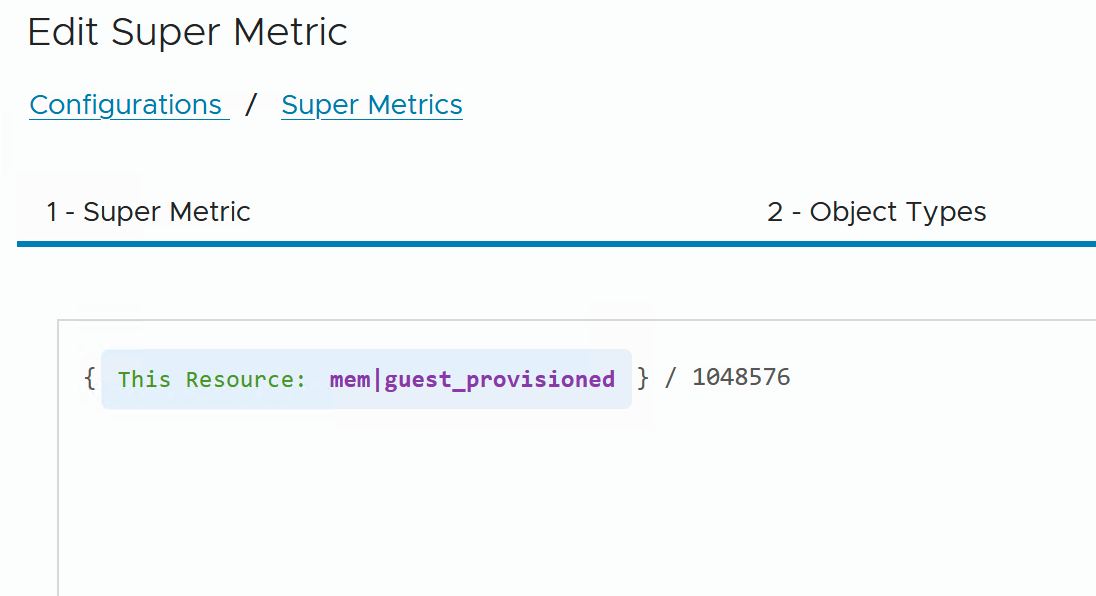
${this, metric=mem|guest_provisioned} / 1048576- Create the super metric, select Virtual Machine as the Object Type.
- Select
THISfrom the dropdown. - Select
Metricfrom the next dropdown menu. - Type in
total capaand selectMemory|Total Capacity (GB)from autocomplete menu (note that the display name is different than the name in the unformatted formula). - At the end add the division by 1048576.
- Set the unit to GB.
- Preview it on a VM with known memory. A 16 GB VM must show 16.
- Activate it in your policy and finish the Super Metric creation.
Want a second one? This combines two metrics of the same object and shows the memory actually used:
${this, metric=mem|guest_provisioned} * ${this, metric=mem|usage_average} / 100 / 1048576The check is easy: the result can never be bigger than the configured memory. If it is, you forgot to divide the percentage by 100.
What’s next
You can now read a Super Metric formula and say exactly which objects and which metric it touches. So far, though, every formula has worked on a single object. In Part 2 the cluster starts asking its hosts and VMs: looping functions, depth in practice, and the vCPU to pCore ratio that almost every capacity conversation starts with.
Stay safe.
Thomas – https://twitter.com/ThomasKopton
2 Comments