A Super Metric earns its keep when something uses it. Over the last four parts we built a small set of KPIs: memory in GB, the worst CPU ready in a cluster, the powered-on vCPU to pCore ratio, an idle VM count, a CPU status code and a host balance index. In this final part of the series we put them to work in alerts and dashboards, take them under version control, and look at what to check when a value looks wrong.
If you are just joining: Part 1 · Part 2 · Part 3 · Part 4.
A Super Metric is a metric
Once computed, a Super Metric behaves like any native metric. You will find it under Metrics Tab → Super Metrics on every object it is assigned to, and you can use it in:
- Dashboards: heatmaps, scoreboards, metric charts
- Views and reports: list views and recurring KPI reports
- Symptoms and alerts: thresholds on the value or on a status code
- Content packages: export, import and version control
From status code to alert
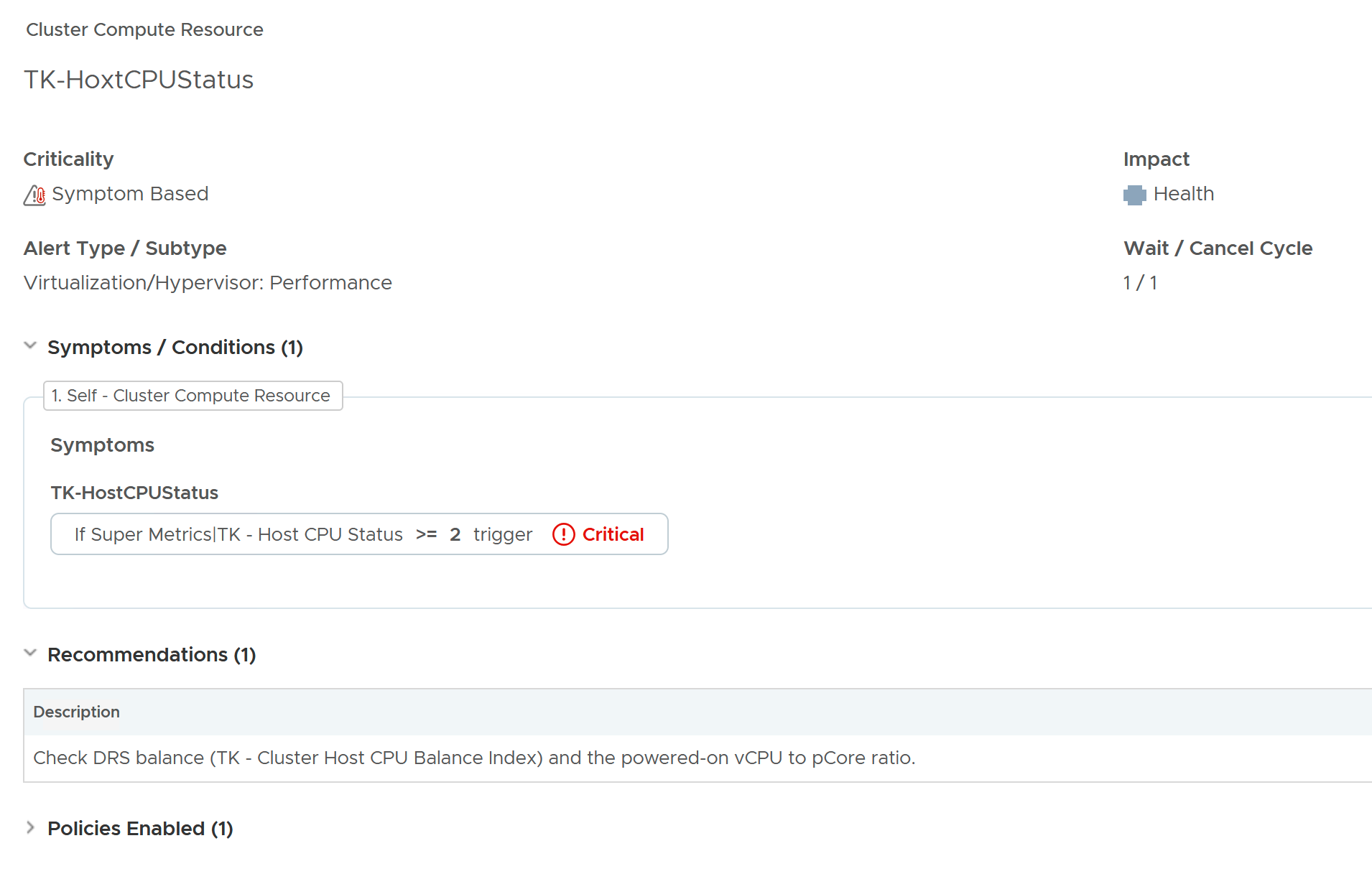
In Part 3 we assigned YourPrefix - Cluster Host CPU Status to Cluster Compute Resource. It returns 0, 1 or 2, depending on the CPU usage of the busiest host in the cluster. Turning it into an alert takes a few minutes:
- Create a metric symptom on Cluster Compute Resource for the Super Metric, condition
greater than or equal to 2, criticality Critical. - Create an alert definition on Cluster Compute Resource that uses this symptom, with impact Health.
- Add a recommendation that helps the person receiving the alert, for example: “Check DRS balance (SM – Cluster Host CPU Balance Index) and the powered-on vCPU to pCore ratio.”
- Make sure the alert definition is enabled in the policy that applies to your clusters.
This is where the status code pattern pays off: one symptom covers it, and if you ever change the thresholds, you change them in the super metric, not in the alert.
To test it, temporarily lower the critical threshold in the super metric and wait a collection cycle or two. Don’t forget to put it back.
A KPI dashboard in three widgets
Here is the (quick and dirty) dashboard I build for this blog series. It answers “which cluster needs attention, and why?” in one screen:
| Widget | Shows | Configured with |
| Heatmap | All clusters | Color by YourPrefix - Cluster CPU Status (three bands for 0, 1, 2), size by YourPrefix - vCPU to pCore Ratio (Powered On) |
| Scoreboard | The selected cluster | YourPrefix - Cluster Host CPU Balance Index, YourPrefix - Count Idle VMs, YourPrefix - Max VM CPU Ready (%) |
| Metric chart | The selected cluster | YourPrefix - vCPU to pCore Ratio (Powered On) over time |
Make the heatmap the provider for the other two widgets, so clicking a cluster updates the scoreboard and the chart. Big red boxes are large, overcommitted clusters under CPU pressure. That is where to look first.
For more dashboard ideas built on Super Metrics, see VMware Aria Operations – Custom Energy Consumption Dashboards.
[Screenshot: KPI dashboard with heatmap, scoreboard and chart]
Treat Super Metrics as code
The step most teams skip: version control. On the Super Metrics page you can select Super Metrics and export them as a JSON file, and import that file into another environment. I strongly recommend keeping that JSON in Git:
- Reviewable: a colleague can review a formula change before it hits production.
- Portable: the same KPIs in test and production, or at the next customer.
- Documented: a short README per Super Metric: the question it answers, the object types, the policy to activate it in.
One thing the export does not solve for you: after an import, the assignment to object types and the activation in policies are environment-specific. Check steps 3 and 4 of the lifecycle from Part 1 after every import.
I keep my own VCF Operations content (mostly:-)), including Super Metrics, in my GitHub repository tkopton/aria-operations-content.
When it looks wrong: six things to check
Almost every Super Metric question I get maps to one of these:
| Symptom | Likely cause | Fix |
| No data at all | Not assigned to the object type, or not activated in the policy | Assign it, then activate it in the policy that applies to those objects |
| Flat zero or empty Preview | Wrong metric key or wrong depth | Pick the key with autocomplete; recount the hops from the assigned object |
| Value frozen after an outage | Stale last values still counted | Add isFresh() to the where clause |
| Gaps or errors in a ratio | Division by zero | Add 0.0001 to numerator and denominator |
| Off by a factor of 1,000 or 1,024 | KB, MB and GB mixed up | Check the metric’s unit, convert in the formula, set the unit field |
| No history before today | Expected: there is no backfill | Create KPIs early; use Preview to judge a formula |
The first two rows cover the large majority of cases.
Wrapping up the series
From 0 to hero in four levels:
- Part 1, one object: the lifecycle, this, metric keys, depth and unit math
- Part 2, many objects: looping functions, depth across the hierarchy, metric vs. attribute
- Part 3, the right objects: where, isFresh, string conditions, ternaries
- Part 4, production patterns: aliases, safe division, custom groups, habits at scale
- Part 5, put to work: alerts, dashboards, Git and troubleshooting
My suggestion for your next step: build one Super Metric this week that answers a question a customer or a colleague actually asked you. That is when this stuff really sticks.
Thanks for following the series. If you build something interesting with Super Metrics, let me know in the comments.
Stay safe.
Thomas – https://twitter.com/ThomasKopton