Scenario
vSphere tags are one of the most common ways administrators put business context on their infrastructure. Owner, environment, location, support tier, backup policy: it is all there in vCenter, nicely organized in categories. And VCF Operations collects it. So far, so good.
The problem starts when you want to use it. Open any VM in VCF Operations and look at Summary|vSphere Tag. What you get is one single string with all tags of the object:
[<location-amsterdam>, <owner-tkopton>, <supporttier-gold>]
Try building a view with a column “Owner” from that. Or a report grouped by support tier. Or a custom group of all VMs in Amsterdam. You end up with string matching, regular expressions in super metrics, or “contains” conditions that break as soon as someone adds another tag. I have had this conversation with customers more than once, and every time the wish was the same: give me the category as a key and the tag as its value.
So I built a small management pack that does exactly that.
The vSphere Tags Management Pack
The vSphere Tags Management Pack is built with the VCF Operations Integration SDK. It reads the tag string the vCenter adapter already collects, splits it, and writes one property per tag category back onto the same object:
Before (vCenter adapter):
Summary|vSphere Tag = [<location-amsterdam>, <owner-tkopton>, <supporttier-gold>]
After (vSphere Tags MP, same VM):
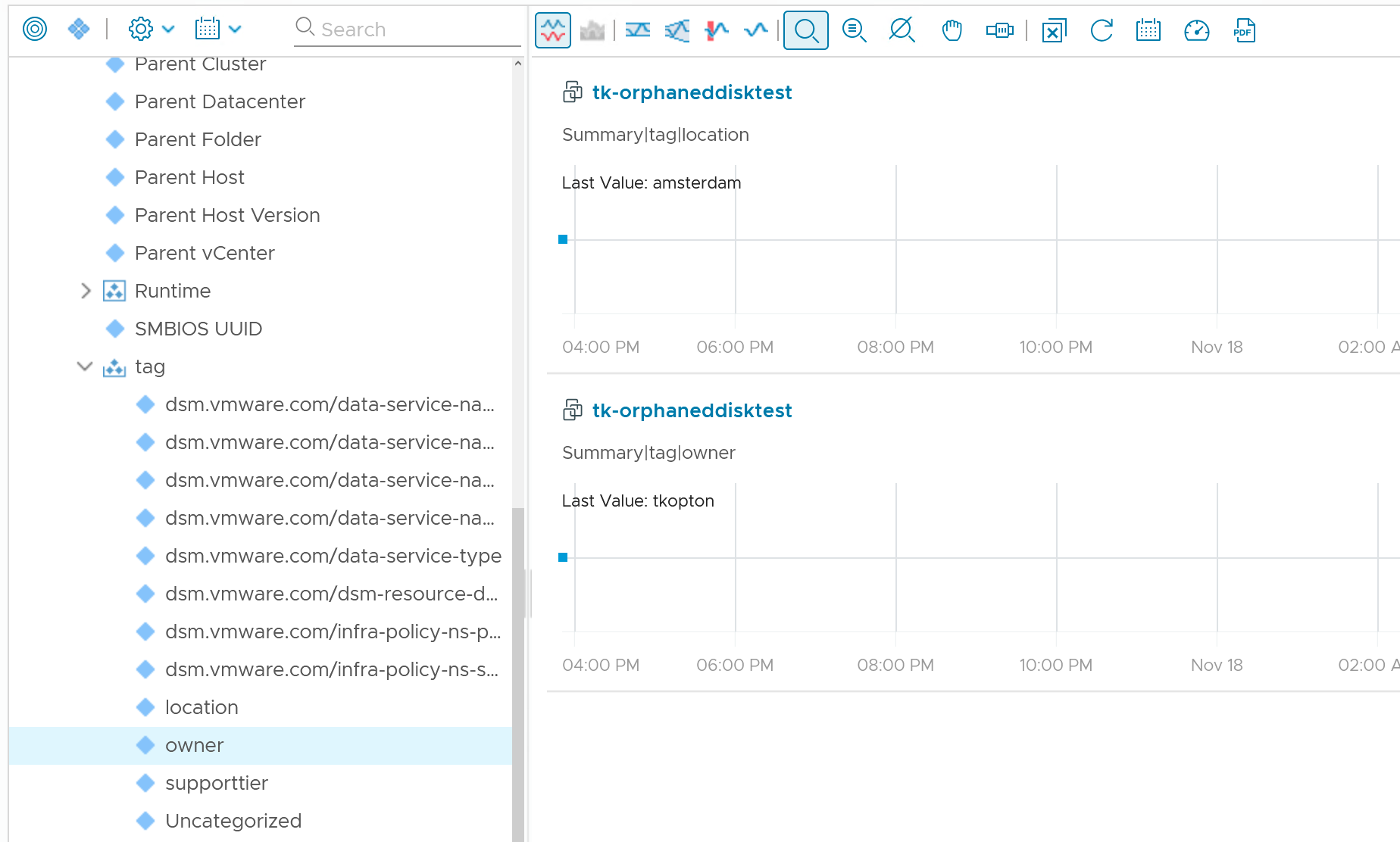
Summary|tag|location = amsterdam
Summary|tag|owner = tkopton
Summary|tag|supporttier = gold
A few details that matter in practice:
- No new objects. The properties are added to the existing vCenter adapter objects: VMs, hosts, clusters, datastores and datacenters by default.
- Every category on every object. If a category exists anywhere, objects without a tag in it get the value none. Your views have no empty cells, and “all VMs without an owner” becomes a simple filter.
- Removed tags don’t linger. When someone removes a tag in vCenter, the property switches to none in the next cycle instead of keeping its old value.
- Multiple tags per category (multi-cardinality categories) are joined, sorted, with a comma: App = DB, Web.
How It Works
The pack never talks to vCenter. It only uses the VCF Operations Suite API, which the collector provides to every SDK adapter out of the box. That means no vCenter credentials and one account that covers all your vCenters at once.
Every collection cycle (5 minutes by default) runs through four steps:
- Find the objects. Query all objects of the configured types from the vCenter adapter (
VMWARE) withPOST /api/resources/query. - Read the tag strings. Read the current
summary|tagvalue of those objects in batches through the Suite API. - Parse. Cut
[<Category-Tag>, ...]into items and split each item into category and tag. - Write. Return one property per category for each object, with
nonefor categories the object has no tag in.
In my lab, a collection of 342 objects takes about 3.5 seconds.
The one tricky part is step 3. The vCenter adapter joins category and tag with a -, and nothing stops you from using a - in a category or tag name. Is <Backup-Policy-Gold> category Backup with tag Policy-Gold, or category Backup-Policy with tag Gold? The pack splits at the first - by default. If that is wrong for you, list your hyphenated categories under Known Categories (they always win), or switch the split to the last -.
Lessons Learned in the Lab
On paper, step 2 is the easy one. In reality it took three versions to get right, and the reasons are worth knowing for anyone writing SDK adapters that read data through the Suite API.
Lesson 1: No Suite API client during Test Connection
The first version failed right at Test Connection:
Unexpected connection test error: TypeError("'NoneType' object does not support the context manager protocol")When you test an account that is not saved yet, the collector does not pass the Suite API connection details to the adapter, so adapter_instance.suite_api_client is None. Once the account is saved, collect() gets the client as expected. If your adapter only talks to the Suite API, let test() pass when there is no client, and report real problems in collect().
Lesson 2: JSON strips everything between < and >
This one was a surprise. After the first successful collection, my VMs had a single new property, Summary|tag|Uncategorized, with the value ,. The parser was fine. The input was not: the Suite API delivered the tag string as [, , ].
VCF Operations removes everything between < and > from property values in its JSON output, most likely as HTML protection, and the vSphere tag format is exactly <...>. I tried three endpoints, and the result was always the same until I asked for XML:
| Endpoint | Accept header | Value received |
|---|---|---|
POST /api/resources/properties/latest/query | application/json | [, ] |
GET /api/resources/properties | application/json | [, , ] |
GET /api/resources/{id}/properties | application/json | [, , ] |
GET /api/resources/{id}/properties | application/xml | [<location-amsterdam>, <owner-tkopton>, <supporttier-gold>] |
The XML output keeps the value. The pack now reads in bulk as JSON, and re-reads every value that comes back stripped as XML. The adapter log shows the difference for the first object of each run:
INFO 42aab1b3-...: JSON value '[, , ]', XML value '[<location-amsterdam>, <owner-tkopton>, <supporttier-gold>]'This probably also explains a known issue where vSphere tags show up empty in alert email templates.
Lesson 3: An adapter cannot delete properties
That bogus Uncategorized property is still on my lab VMs. An adapter can add and overwrite properties, but it cannot remove them. So the pack now skips and logs any value it cannot parse instead of writing garbage. The same rule is why it writes none for missing categories rather than leaving them out.
Get It and Set It Up
The pack lives in my content repository on GitHub, in the folder vSphere-Tags-MP. Version 1.0.3 is the first one that works end to end in my lab.
Download the ready-made .pak
You don’t have to build anything. Download vSphereTagsMP_1.0.3.pak from the repository and go straight to the installation below.
One thing to know: the .pak is only 32 KB because it does not contain the adapter code. It points to the container image docker.io/tkopton/vsphere-tags-mp, pinned by its digest, and your cloud proxy pulls that image from Docker Hub when the account starts. So the cloud proxy needs access to Docker Hub. In an air-gapped environment, build your own .pak and push the image to a registry your cloud proxy can reach, as described next.
Or build it yourself
You need Python 3.11 or 3.12, Docker, the VCF Operations Integration SDK tools, and a container registry your cloud proxy can pull from. I use a public Docker Hub repository.
pip install vmware-aria-operations-integration-sdk
git clone https://github.com/tkopton/aria-operations-content.git
cd aria-operations-content/vSphere-Tags-MP
mp-build -r docker.io/<your-account>/vsphere-tags-mp
mp-build builds the adapter image, pushes it to the registry, and writes build/iSDK_vSphereTagsMP_1.0.3.pak.
Install and configure
- In VCF Operations, go to Data Sources > Integrations > Repository > Add and upload the .pak.
- Under Accounts > Add Account, choose vSphere Tags, give it a name and pick the cloud proxy.
- Keep the defaults for a start, and save. One account per VCF Operations instance is enough.
- After one or two collection cycles, open a tagged VM and look under
Summary|tag.
The settings, if you need to adjust them:
| Setting | Default | What it does |
|---|---|---|
| Object Types | VirtualMachine, HostSystem, ClusterComputeResource, Datastore, Datacenter | vCenter adapter object types to process |
| Known Categories | empty | Category names containing -, so they split correctly |
| Split Category and Tag At | first | Split at the first or last - |
| Value for Unset Categories | none | Written when an object has no tag in a category; empty writes nothing |
| Multi-Value Separator | comma and space | Joins several tags of one category |
| Property Prefix | Summary, tag | Where the new properties appear in the metric tree |
Putting the Tags to Work
Once the properties are there, they behave like any other property in VCF Operations:
- Views: add
Summary|tag|owneras a column next to CPU and memory, or group a list view bysupporttier. - Reports: a capacity or cost report per
locationor perowner, without any string magic. - Custom groups: a membership rule such as “Property
Summary|tag|supporttier is gold” gives you a dynamic group of all gold VMs. Combine it with policies and alerts, for example tighter thresholds for gold. - Finding gaps: filter for
ownerisnone, and you have every VM nobody claimed yet. - Super metrics: combined with the custom groups above, you can aggregate per tag, for example the total vCPUs of all gold VMs.
Known Limitations
- New tags show up one collection cycle after the vCenter adapter collected them.
- Properties added to another adapter’s objects carry no labels or units, so they appear under their raw category names.
- If a category disappears from every object and is not in Known Categories, its last values stay. Add it to Known Categories once to set them to
none. - Reading tagged objects as XML costs one extra API call per tagged object. Fine for a lab and mid-size environments; for very large ones, a bulk XML read is the next improvement on my list. Or the JSON response gets fixed;-)
Wrap-up
A small pack, but it turns tags from something you look at into something you can build on. And the JSON versus XML behaviour of the Suite API is worth remembering for any adapter that reads property values containing < or >.
Give it a try and let me know how it works in your environment. Issues and pull requests are welcome in the GitHub repository.
Disclaimer: this is a community project, not a Broadcom product, and it is not supported by Broadcom. Test it in a lab before you use it in production.
Stay safe.
Thomas – https://twitter.com/ThomasKopton